
In this article we will see how to enable and obtain the key to use Google Maps in Scriptcase applications.
Accessing the Google Maps Platform
1.Go to the link https://mapsplatform.google.com/ to create your key.

You will need to login to a google account
2. Click on First Steps
If you are on your google cloud console, just search for google maps and select Google Maps Platform.
3. Click Finish Account Setup
Getting key
The configuration will be carried out in two steps.
- Accept the terms and inform the country of your account.
- Enter the requested data and payment method
The date of birth must contain the slashes /
- Answer a few google questions and click submit to finish the process.
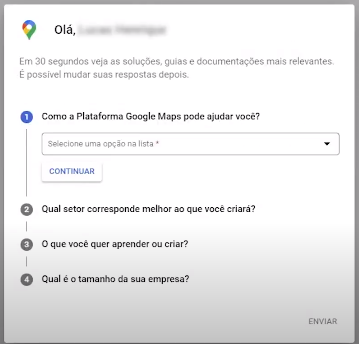
- At the end it will show you the generated key, which must be used in Scriptcase applications.
Usage Restriction (Optional)
You can configure restrictions on the generated keys to prevent unauthorized use.
To access this configuration, just click on edit the key.
Using credentials in Scriptcase
This key must be used in fields like google maps. Go to the field's configuration and look for API Key.

When publishing an application that uses google maps, the key can be configured for the entire environment, in the Environment Settings menu