
This article describes PHP 7.0 and Apache 2.4 installation to ScriptCase use.
Supported Operating Systems:
Ubuntu
Debian
CentOS\RHEL
OpenSuse
 Necessary Files: SourceGuardian Loader (ixed.7.0.lin): Click Here
Setting Up PHP - Ubuntu
Because of recent changes, Ubuntu replaced the version 7.0 from PHP by the 7.2 version in the default repository.
1 - Access the terminal (shell) and execute the command below to use the superuser (root):
sudo su
2 - Add the repository so that you can realize the download of the PHP packages in the correct version:
add-apt-repository ppa:ondrej/phpapt-get update
3 - Execute the command below to install the PHP and accept the dependencies installation:
apt-get install php7.0 php7.0-dev php7.0-cli
4 - Verify the PHP version by executing the command below:
php -v
5 - There is below some extensions required for the good functioning of Scriptcase:
apt-get install php7.0-gd php7.0-bcmath php7.0-cgi php7.0-common php7.0-fpm php7.0-json php7.0-ldap php7.0-mbstring php7.0-mcrypt php7.0-xml php7.0-zip
Important: By default some PHP functions are disabled, but they are important for ScriptCase. Access the php.ini file (
/etc/php/7.0/apache2/php.ini) and change this item disable_functions according to the example below:

6 - Setup the TimeZone according to your region. You need to use the value available at the PHP documentation Click Here to view.
Activating The Database’s Extensions:
| Extension | Driver enabled in Scriptcase |
| apt-get install php7.0-pgsql | PostgreSQL PDO, PostgreSQL 6.3 or bellow, PostgreSQL 6.4 or above, PostgreSQL 7 ou above |
| apt-get install php7.0-mysql | MySQLi, MySQL PDO |
| apt-get install php7.0-sqlite | SQLite PDO |
| apt-get install php7.0-interbase | Firebird, Interbase 6, Interbase 6.5, Firebird PDO |
| apt-get install php7.0-odbc | DB2 ODBC GENERIC, DB2 ODBC GENERIC 6, Generic ODBC, MS Access ODBC, Oracle ODBC, Progress, DB2 PDO ODBC, Progress PDO ODBC, Sybase PDO ODBC |
| apt-get install php7.0-sybase | DBLIB, Sybase PDO DBLIB |
If you want to enable the oci8 extension to connect with Oracle Database, follow the steps described in our documentation.
Setting Up PHP - Debian
Because of recent changes, Ubuntu replaced the version 7.0 from PHP by the 7.2 version in the default repository.
1 - Access the terminal (shell) and run the command below to use the superuser (root):
su
2 - Add the repository so that you can download the PHP 7.0 packages and then upgrade the packages:
wget -q https://packages.sury.org/php/apt.gpgapt-key add apt.gpgecho "deb https://packages.sury.org/php/ stretch main" | tee /etc/apt/sources.list.d/php.listapt-get update
3 - Run the command below to install PHP and accept the installation of dependencies:
apt-get install php7.0 php7.0-cli
4 - Check the PHP version by running the command below:
php -v
5 - Below are some extensions required for the proper functioning of Scriptcase:
apt-get install php7.0-gd php7.0-bcmath php7.0-cgi php7.0-common php7.0-fpm php7.0-json php7.0-ldap php7.0-mbstring php7.0-mcrypt php7.0-xml php7.0-zip
6 - Configure the TimeZoneaccording to your region. You should use the value available in the PHP documentation. Click here to view.
Activation of Database Extensions:
| Extension | Driver enabled in Scriptcase |
| apt-get install php7.0-pgsql | PostgreSQL PDO, PostgreSQL 6.3 or below, PostgreSQL 6.4 or above , PostgreSQL 7 ou above |
| apt-get install php7.0-mysql | MySQLi, MySQL PDO |
| apt-get install php7.0-sqlite | SQLite PDO |
| apt-get install php7.0-interbase | Firebird, Interbase 6, Interbase 6.5, Firebird PDO |
| apt-get install php7.0-odbc | DB2 ODBC GENERIC, DB2 ODBC GENERIC 6, Generic ODBC, MS Access ODBC, Oracle ODBC, Progress, DB2 PDO ODBC, Progress PDO ODBC, Sybase PDO ODBC |
| apt-get install php7.0-sybase | DBLIB, Sybase PDO DBLIB |
If you want to enable the oci8 extension to connect with Oracle Database, follow the steps described in our documentation.
Setting Up PHP - CentOS 7
Note: By changes to the latest version of CentOS, PHP 7.0 will not be
installed by default. You will need to follow the steps described below:
1 - Access the terminal (shell) and run the command below to use the root user:
sudo su
2 - Add the repositories you need to download php 7.0 packages and then upgrade the packages:
yum -y install epel-release.noarch yum-utilsyum -y install http://rpms.remirepo.net/enterprise/remi-release-7.rpmyum-config-manager —enable remi-php70yum update
3 - Run the command below to install PHP and accept the installation of dependencies:
yum -y install php
4 - Check the PHP version by running the command below:
php -v
5 - Below are some extensions required for the proper functioning of Scriptcase:
yum install php70-php-gd.x86_64 php70-php-bcmath.x86_64 php70-php-common.x86_64 php70-php-ldap.x86_64 php70-php-mbstring.x86_64 php70-php-mcrypt.x86_64 php70-php-xml.x86_64 php70-php-pdo.x86_64 php70-php-pear.x86_64
6 - Configure the TimeZoneaccording to your region. You should use the value available in the PHP documentation. Click here to view.
Activation of Database Extensions:
| Extension | Driver enabled in Scriptcase |
| yum install php70-php-pgsql.x86_64 | PostgreSQL PDO, PostgreSQL 6.3 or below, PostgreSQL 6.4 or above, PostgreSQL 7 or above |
| yum install php70-php-mysql.x86_64 | MySQLi, MySQL PDO |
| yum install php-sqlite3 | SQLite PDO |
| yum install php70-php-interbase.x86_64 | Firebird, Interbase 6, Interbase 6.5, Firebird PDO |
| yum install php70-php-odbc.x86_64 | DB2 ODBC GENERIC, DB2 ODBC GENERIC 6, Generic ODBC, MS Access ODBC, Oracle ODBC, Progress, DB2 PDO ODBC, Progress PDO ODBC, Sybase PDO ODBC |
| yum install php70-php-pdo-dblib.x86_64 | DBLIB, Sybase PDO DBLIB |
If you want to enable the oci8 extension to connect with Oracle Database, follow the steps described in our documentation.
Enabling SourceGuardian Loader
1 - Realize the download of the extension ixed.7.0.lin for the 64 bits architecture from the SourceGuardian’s website through this link.
2 - Copy the file ixed.7.0.lin that was downloaded in according with your distribution and architecture and paste in the PHP’s extensions directory.
cp ixed.7.0.lin /usr/lib/php/20151012
3 - Edit the PHP configuration file(php.ini) and add the directive to enable the SourceGuardian extension in your PHP.
For example: extension=ixed.7.0.lin.
nano /etc/php/7.0/apache2/php.ini
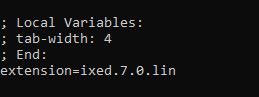
4 - In the end, restart your apache service to apply the changes made:
service apache2 restart.
Scriptcase Manual Installation
-
Download ScriptCase with the extension zip at www.scriptcase.net and extract it on the root of your web server.
-
After extracting, rename the folder to scriptcase.
-
Access Scriptcase from your browser using the URL below:
-
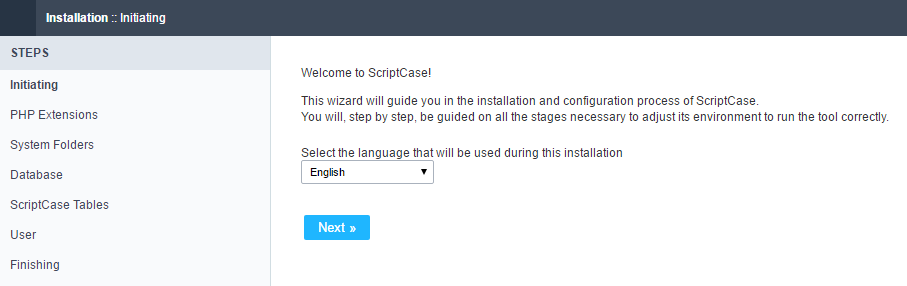
By default, the selected language is English.
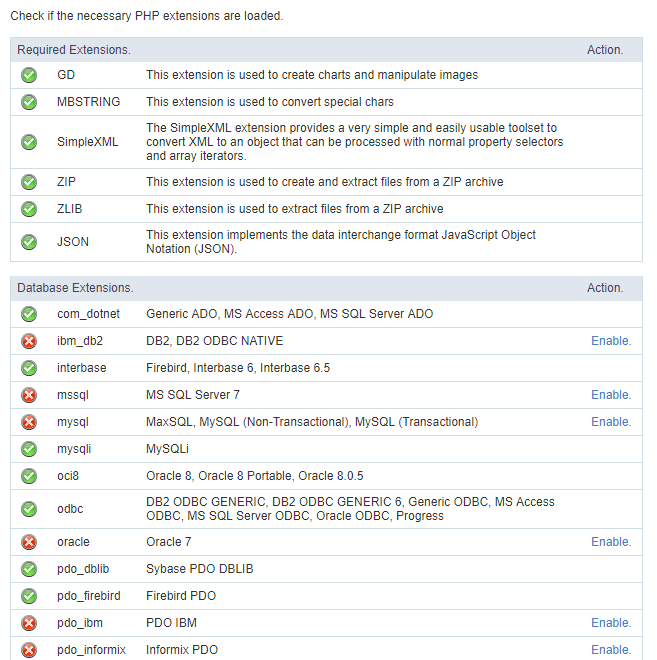
- Verifying the necessary extensions for ScriptCase to work and the modules for the database connections.
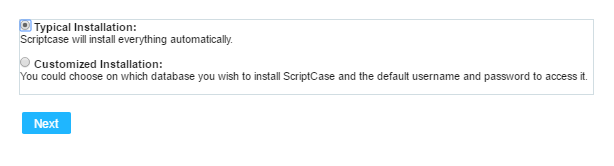
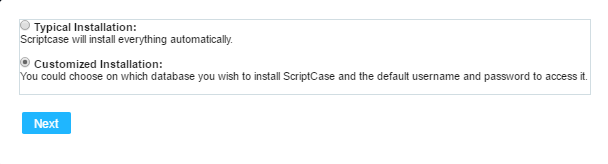
Typical Installation
- On this option, ScriptCase will be installed with the default settings.
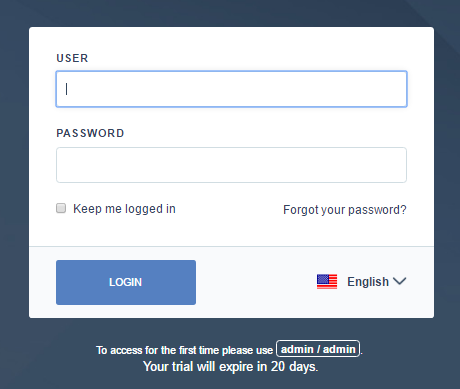
- Login Screen.
Custom Installation
- On this option, the user will choose the settings for the installation.
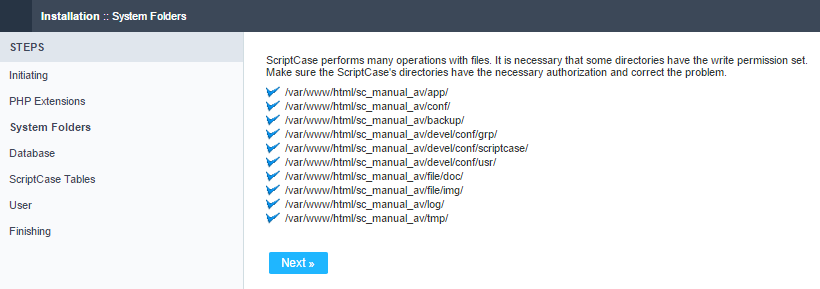
- Verify the system’s directory permissions.
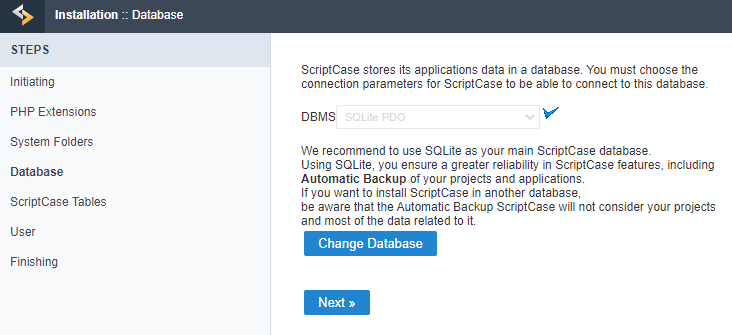
- We can choose the database that ScriptCase will use to store the data in.
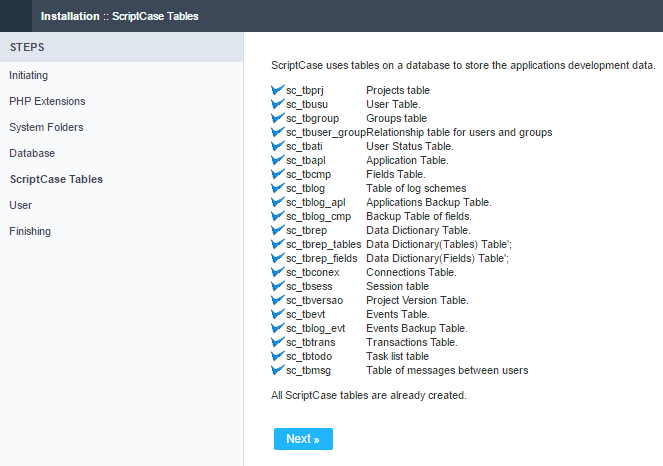
- Displaying the ScriptCase’s tables creation.
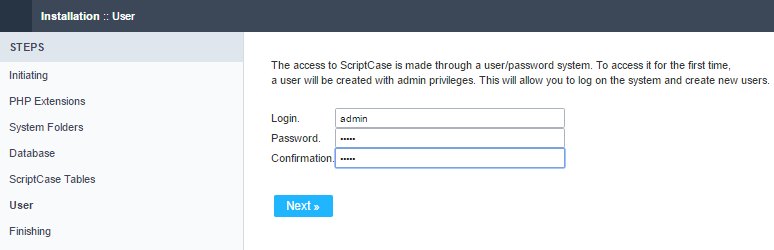
- Setting up the user to access ScriptCase.
- Finishing the custom installation
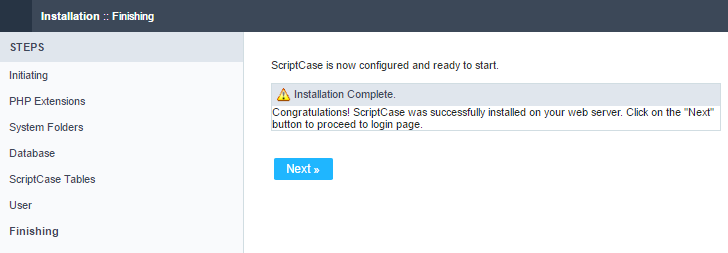
- Login Screen.